

If your Mac takes forever to start, you are not alone. A slow boot Mac can turn a quick task into a frustrating wait, especially when startup stretches from seconds into several minutes.
The good news is that most startup issues are caused by software settings, overloaded storage, or unnecessary login items. In this complete guide, you will learn how to fix slow boot Mac step by step using safe, proven methods.
We will cover quick fixes, deep diagnostics, Apple silicon and Intel differences, disk health checks, and advanced solutions so you can restore fast startup performance with confidence.
Why Is Your Mac Booting Slowly
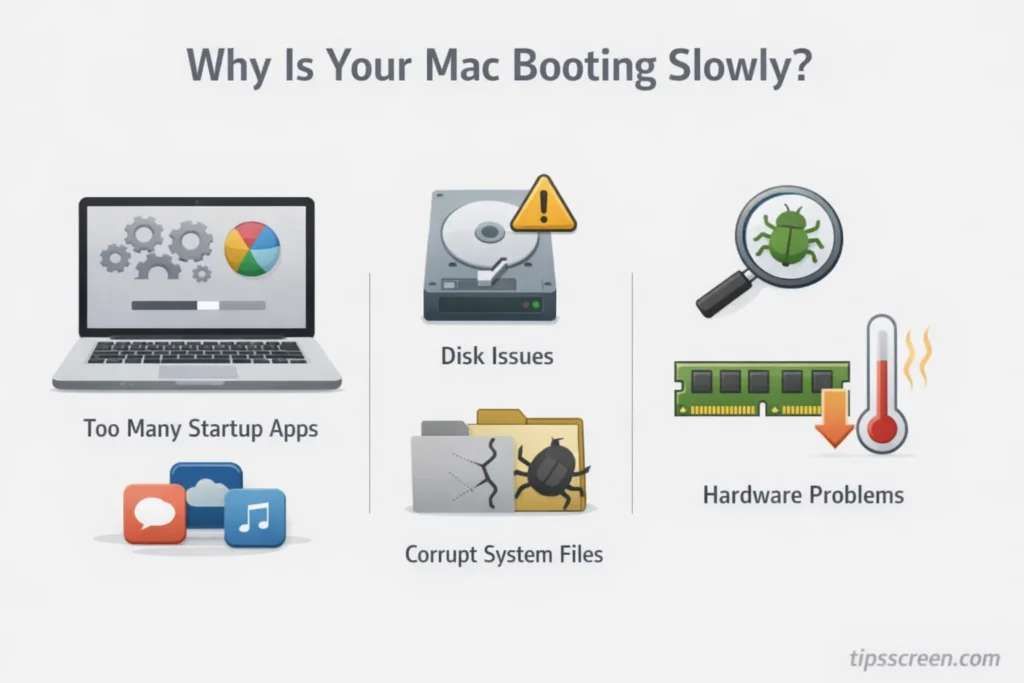
Before jumping into solutions, it helps to understand why macOS slow boot problems happen.
A Mac startup process loads the operating system, verifies the startup disk, launches background services, and opens login items. If any of these stages are overloaded or corrupted, your Mac slow startup becomes noticeable.
What Is a Normal Mac Boot Time
Boot time depends on your hardware.
| Mac Type | Expected Boot Time |
|---|---|
| Apple Silicon with SSD | 10 to 20 seconds |
| Intel Mac with SSD | 20 to 40 seconds |
| Intel Mac with HDD | 1 to 2 minutes |
If your Mac takes 5 to 10 minutes to boot, that is not normal and indicates a problem.
Also note the difference between booting and waking from sleep. Waking should be nearly instant. A slow wake may signal deeper issues.
Software vs Hardware Causes of Slow Boot
Most slow boot Mac cases are software related.
Common software causes:
- Too many login items
- Startup disk full
- Corrupt system files
- Malware or hidden launch agents
- macOS update glitches
Hardware causes include:
- Failing SSD or HDD
- Insufficient RAM
- Aging mechanical drives
Understanding this difference helps you apply the right fix.
Signs Your Slow Boot Is a Bigger Problem
Watch for these warning signs:
- Spinning beachball during login
- Repeated kernel panic messages
- Mac stuck on Apple logo
- Extremely loud clicking from HDD
If these occur regularly, deeper diagnostics are needed.
Quick Fix Checklist to Fix Slow Boot Mac
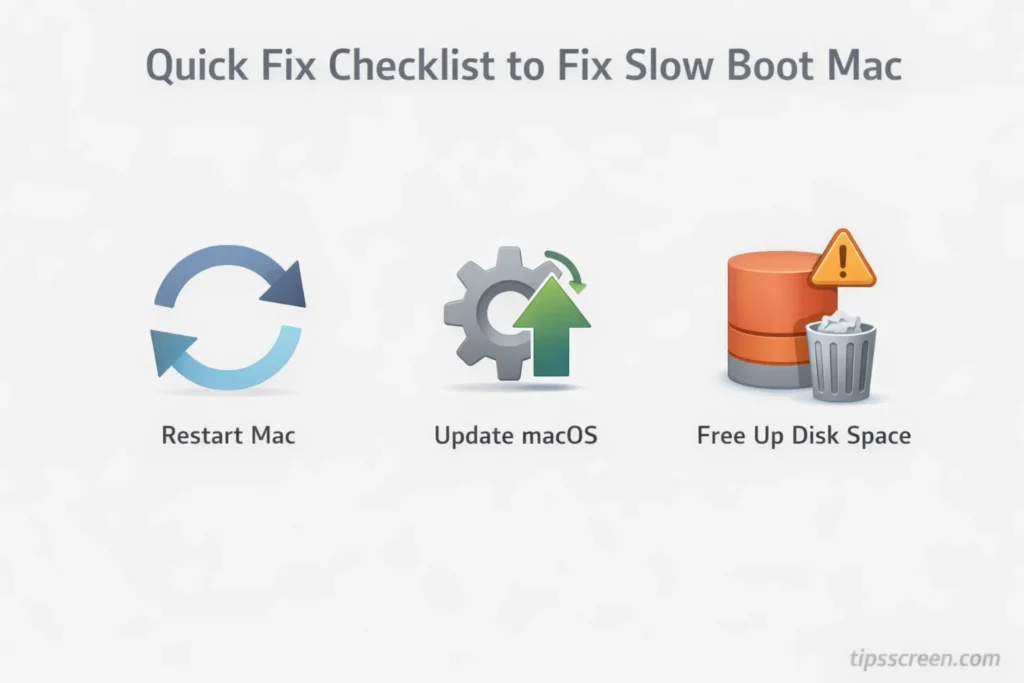
If you want fast results, start here.
1. Restart Your Mac Properly
Many users only close the lid instead of shutting down.
Restart your Mac and uncheck “Reopen windows when logging back in.” Reopening heavy apps increases startup time.
This simple step can immediately speed up Mac startup.
2. Update macOS
Running outdated macOS can cause compatibility issues.
Go to System Settings and install the latest macOS updates. Updates often optimize startup disk performance and fix background bugs.
If boot slows temporarily after updating, give it 1 to 2 restarts for indexing to complete.
3. Free Up Startup Disk Space
Your startup disk should always have at least 15 to 20 percent free storage.
When storage is nearly full:
- Virtual memory slows
- System caches struggle
- macOS performance drops
To check storage:
- Open System Settings
- Go to General
- Select Storage
Delete large unused files and empty Trash. This alone often resolves macOS slow boot issues.
Remove Startup Apps and Login Items
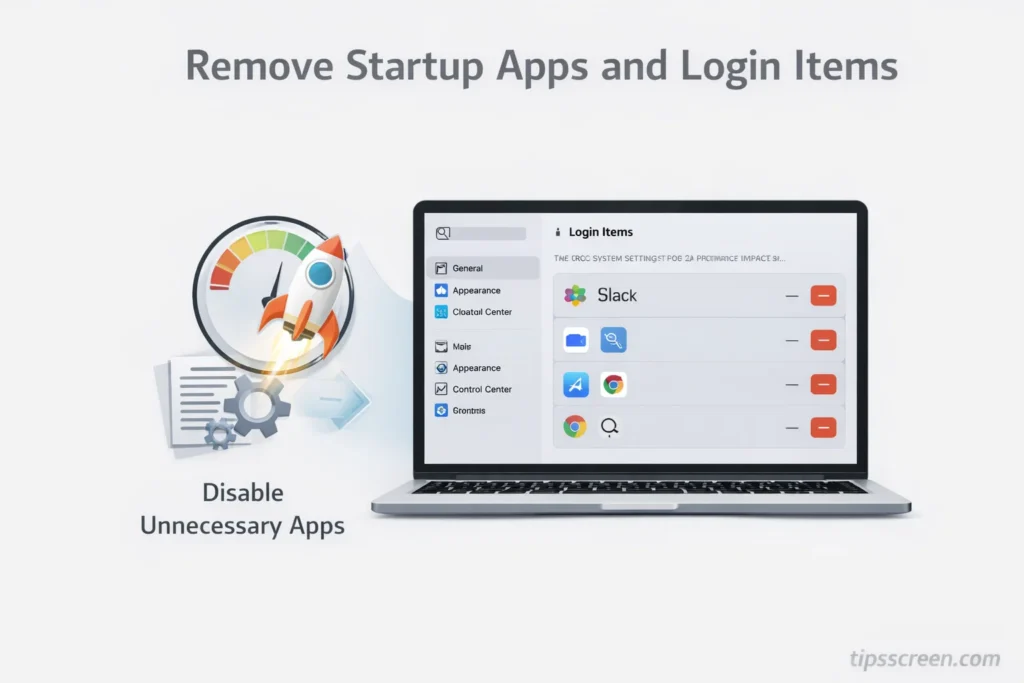
Too many login items is one of the most common reasons people search how to fix slow boot Mac.
How to Check Login Items in macOS
- Open System Settings
- Go to General
- Select Login Items
Disable unnecessary apps like cloud sync services or messaging apps.
Every disabled item reduces boot load time.
Remove Hidden Launch Agents and Daemons
Some apps install background launch agents in Library folders.
Check:
- Library > LaunchAgents
- Library > LaunchDaemons
Remove suspicious or unused entries carefully. Hidden launch scripts often slow boot significantly.
This advanced step fills a gap most guides ignore.
Background Apps That Commonly Slow Boot
Common offenders include:
- Cloud backup apps
- Antivirus software
- Menu bar utilities
- VPN auto launch tools
Reducing startup tasks can dramatically optimize macOS boot time.
Use Safe Mode to Diagnose Slow Boot Issues
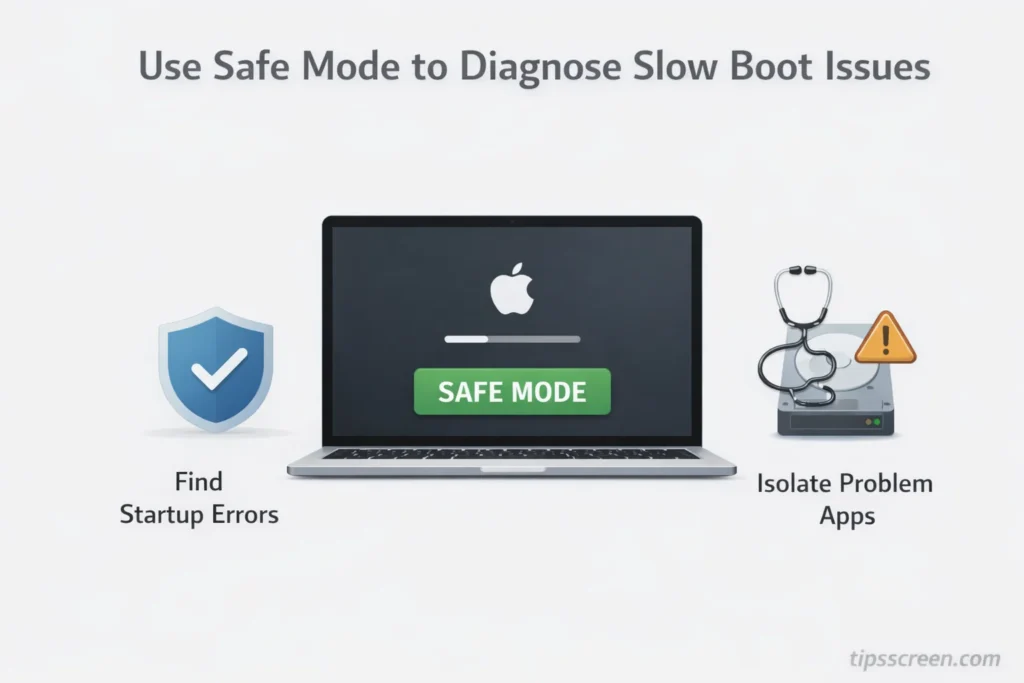
Safe Mode loads macOS with minimal drivers and disables third party extensions.
How to Boot in Safe Mode on Apple Silicon
- Shut down your Mac
- Hold the power button
- Select startup disk
- Press Shift and choose Continue in Safe Mode
How to Boot in Safe Mode on Intel Macs
- Restart Mac
- Hold Shift immediately
- Release at login screen
What Safe Mode Actually Does
Safe Mode:
- Clears system caches
- Prevents third party extensions
- Performs startup disk checks
If your Mac boots faster in Safe Mode, a login item or background process is causing the delay.
Check Disk Health and Repair Errors
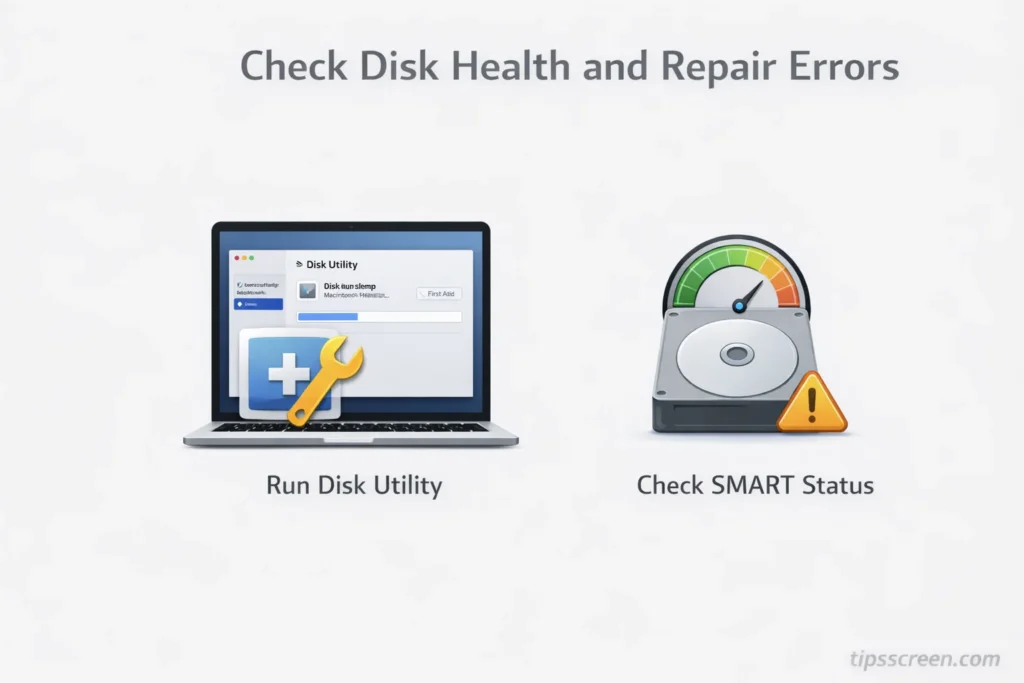
Disk problems directly affect startup performance.
Run First Aid in Disk Utility
- Open Disk Utility
- Select your startup disk
- Click First Aid
This repairs file system errors that may slow startup.
Check Startup Disk Health
Modern SSDs include SMART status monitoring.
Look for:
- Verified status
- No read or write errors
If your disk reports failure warnings, consider replacement.
When to Replace a Failing Drive
Symptoms of failing drive:
- Repeated freezes
- Extremely slow file access
- Boot time over 5 minutes consistently
Upgrading from HDD to SSD can reduce boot time by over 50 percent.
Reset NVRAM, PRAM, and SMC
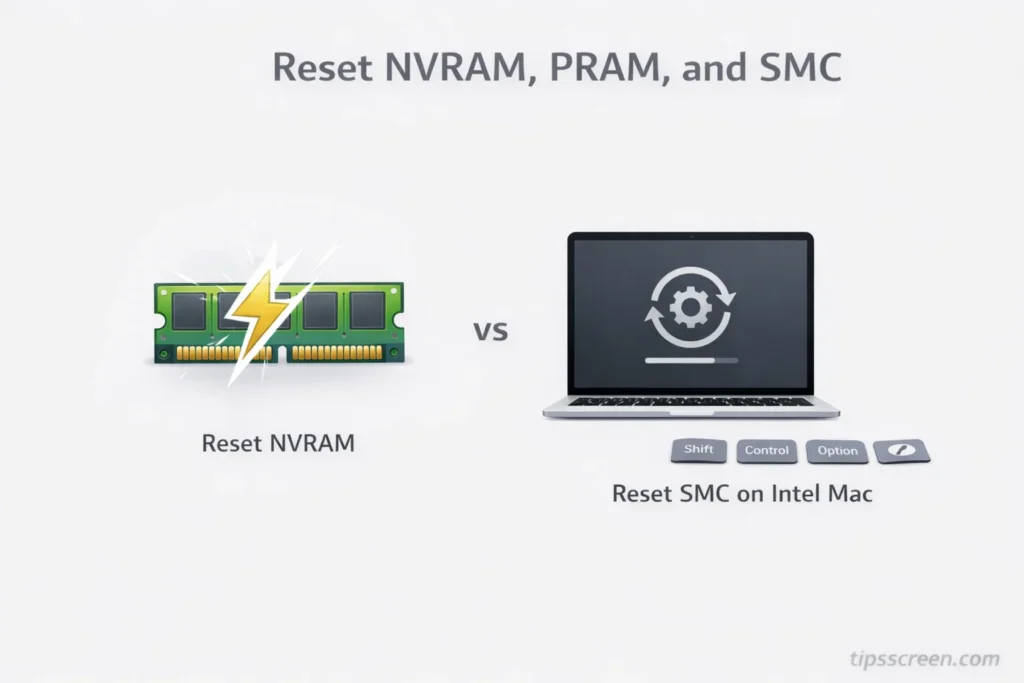
These resets can fix hardware configuration glitches.
When You Should Reset NVRAM
Reset if you experience:
- Startup disk confusion
- Display resolution issues
- Sound problems during boot
For Intel Mac:
- Restart and hold Option, Command, P, R for 20 seconds
Apple silicon resets automatically on restart.
How to Reset SMC on Intel Macs
SMC manages power and hardware functions.
Steps vary by model, but generally involve holding Shift, Control, Option and power for 10 seconds.
Apple silicon Macs do not require manual SMC reset.
Use Activity Monitor to Identify Boot Bottlenecks
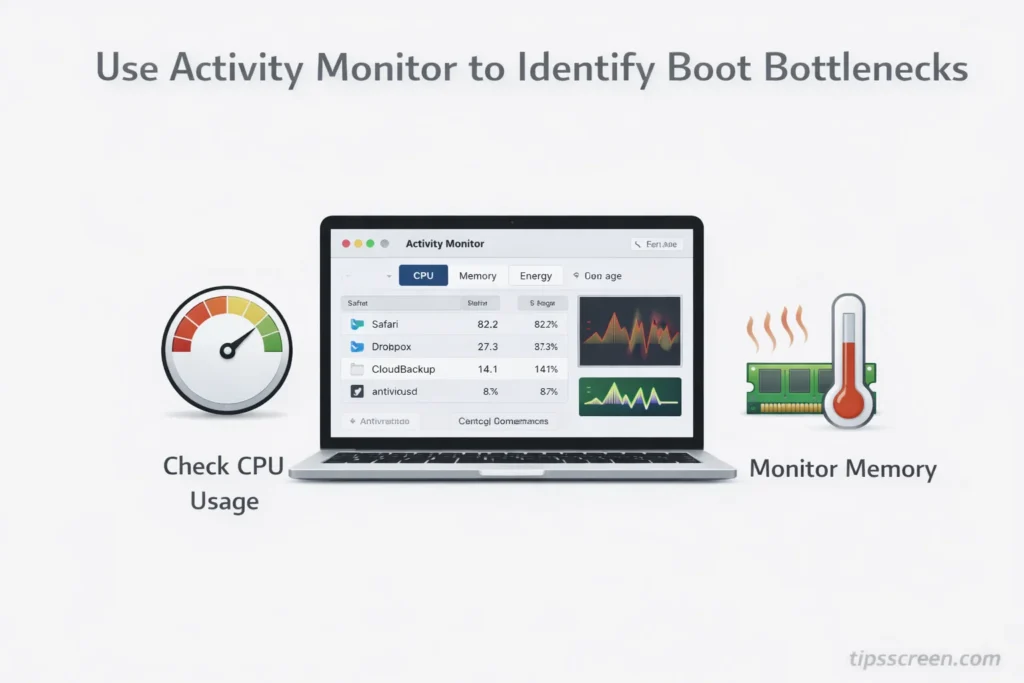
Activity Monitor is powerful yet underused.
Check CPU Usage During Startup
Open Activity Monitor and observe CPU tab after login.
Look for:
- Apps using over 50 percent CPU
- Persistent background spikes
High CPU usage slows Mac slow startup performance.
Monitor Memory Pressure
Go to Memory tab.
If memory pressure is red:
- Too many background processes are loading
- RAM may be insufficient
Consider closing apps or upgrading RAM if supported.
Identify Apps Using Excessive Resources
Sort by Energy Impact or Disk Activity.
Apps with heavy disk activity during boot slow your system.
Disabling them from login items improves startup speed.
Scan for Malware or Corrupt Software
Although Macs are secure, malware still exists.
How Malware Slows Boot Time
Malicious software:
- Installs hidden launch agents
- Consumes CPU in background
- Modifies startup scripts
Run a trusted macOS malware scan to rule this out.
Removing Suspicious Launch Scripts
Delete unknown launch items carefully.
If unsure, create a backup before removal.
When to Reinstall macOS
If slow boot Mac persists after all fixes:
- Back up using Time Machine
- Reinstall macOS via Recovery Mode
This refreshes corrupted system files without deleting personal data.
Advanced Fixes If Your Mac Still Boots Slowly
If basic troubleshooting fails, move to advanced optimization.
Perform a Clean Installation
Erase disk and reinstall macOS.
This removes:
- Hidden background clutter
- Corrupt extensions
- Legacy system conflicts
Clean installs often restore near factory boot time.
Upgrade from HDD to SSD
If your Mac still uses a mechanical HDD, upgrading to SSD is transformative.
SSD benefits:
- Faster read speeds
- Instant system indexing
- Dramatically reduced boot time
This is the most powerful hardware fix.
Add More RAM on Supported Macs
If memory pressure remains high during boot:
- Add RAM if your Mac allows upgrades
More memory reduces swap usage and speeds up startup processes.
Apple Silicon vs Intel Mac Boot Optimization
Apple silicon Macs boot faster due to unified memory and optimized system architecture.
Why Apple Silicon Boots Faster
- Integrated storage controller
- Faster CPU initialization
- Optimized macOS design
Unique Troubleshooting for M1 M2 M3 Macs
On Apple silicon:
- SMC reset is unnecessary
- Safe Mode behaves slightly differently
- Rosetta compatibility may affect app loading
If a legacy Intel app loads at startup, it may increase boot time.
Prevent Slow Boot in the Future
Once you fix slow boot Mac issues, prevention is key.
Maintain 20 Percent Free Storage
Keep storage optimized monthly.
Limit Startup Items
Only essential apps should launch automatically.
Avoid Excessive Menu Bar Utilities
Too many utilities consume memory during login.
Schedule Regular Disk Checks
Run First Aid periodically to maintain startup disk health.
Consistency prevents macOS slow boot problems from returning.
Case Study: From 5 Minutes to 18 Seconds
A user with Intel Mac experienced 5 minute startup time.
Fix applied:
- Removed 8 login items
- Freed 60 GB storage
- Reinstalled macOS
- Upgraded to SSD
Final result: Boot time reduced to 18 seconds.
This demonstrates how layered optimization solves slow boot Mac issues.
Summary
If your Mac startup feels painfully slow, the solution is usually systematic, not complicated.
Start with storage cleanup and login items.
Use Safe Mode and Activity Monitor to diagnose hidden issues.
Repair disk errors and reset hardware settings if needed.
For persistent problems, consider SSD upgrades or clean macOS installation.
Understanding how to fix slow boot Mac empowers you to maintain peak performance and avoid unnecessary frustration.
A healthy Mac should boot in seconds, not minutes.
Frequently Asked Questions
Why does my Mac boot normally sometimes and slowly other times?
Intermittent slow startup often happens due to background indexing, Spotlight reindexing, or temporary software conflicts.
Can external drives slow down Mac startup?
Yes. If an external drive is set as startup disk or failing, it can delay boot verification.
Does FileVault encryption affect boot time?
Initial encryption may slow startup slightly, but modern Macs handle FileVault efficiently once setup is complete.
Can too many browser extensions affect startup speed?
Indirectly yes. If your browser launches at login, heavy extensions increase startup load time.
Is slow boot related to internet speed?
No. Boot process occurs before network services fully load, so internet speed does not affect startup time.
Can overheating cause slow boot?
Yes. Thermal throttling may delay CPU initialization during startup if the system is overheating.